
General FAQ
Visit any one of the 61 Minuteman libraries and branch libraries. Be sure to bring a photo identification and proof of address. If you live, work, or go to school in MA but your home library is outside the Minuteman network, you can still sign-up for a Minuteman card or have your existing library card added to Minuteman's user database.
You will be issued a card with borrowing privileges at all Minuteman member libraries, as well as access to our shared digital catalog from OverDrive.
Online:You can also pre-register online for a temporary library card! Go to https://www.minlib.net/ecard and apply with a valid email address.
Your card number will be emailed to you. You can use the temporary card to borrow titles from our digital collection and place holds in the Minuteman catalog. Visit a Minuteman library in person to complete your registration and get a full Minuteman account.
Minuteman Library Network is a consortium of Metrowest public and academic libraries that work collectively to provide excellent service to library users. Libraries in a network share resources, including a single catalog that allows Minuteman card-holders to find, request, and borrow member libraries' materials, both digital and tangible.
(Local policy may restrict borrowing new materials and special collections. Talk to a librarian if you have any difficulties requesting or accessing an item.)
For a list of member libraries including their website and contact info, visit our Member Libraries page. For more information about Minuteman Library Network, visit the About Us page on our website.
The Minuteman Library Network provides free unlimited access to nytimes.com in all public member libraries, and 72-hour home access through our libraries' websites with a promo code.
In Library Access: Visit www.nytimes.com on any public Minuteman library computer or wireless network. Log in or create an account to access NY Times online content for free.
Home / Remote Access: Follow this link or click on the New York Times link at your library's website. Click "Redeem" and log in or create an account to use the promotional code for 72 hours of free access to NY Times online.
To extend access for another 72 hours, return to the link to redeem another code. There is no limit for code redemptions per account.
Features included:
- Unlimited access to NYTimes.com content
- International Edition and Chinese Edition
- Historic Coverage 1851-1922 and 1981 to Current
- Newsletters, Alerts & Times Wire
- Sharing & Commenting
- Times Topics
- Search and Cross Searching
- Real-Time Market Data & Company Research Pages
- Mini Crossword puzzles
Remote Access pass also includes:
- NYTimes Apps
- Today's Paper: Digital edition of today's print edition
- 5 Premium Archive (1923-1980) articles per day
The Libby App / OverDrive collection is our digital collection of ebooks, audiobooks, and magazines. For the best experience, we recommend using the Libby App / Libby website, or the classic digital collection website. You can read or listen to loans on your device, as well as an option to read ebooks on Kindle.
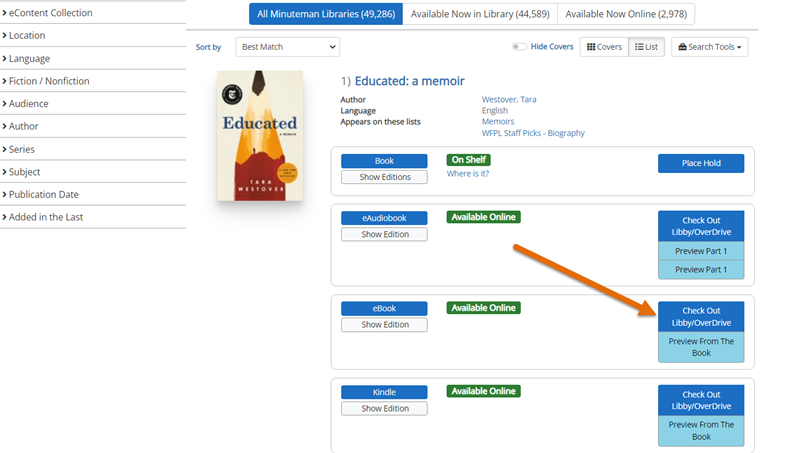
You can also borrow and place holds for digital titles directly from the Minuteman catalog search results.
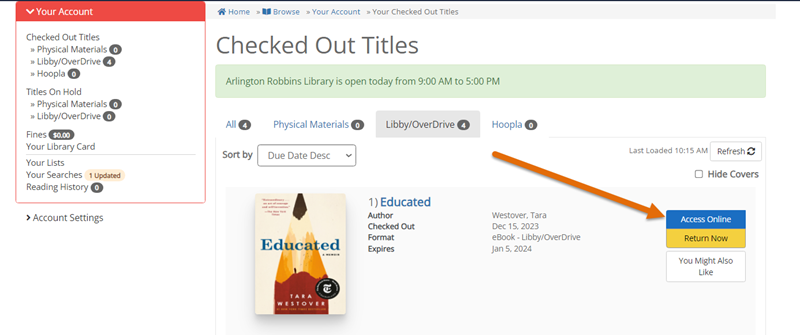
Under your account, view your digital loans and select Access Online, or read/listen directly in the Libby App.
For detailed instructions on borrowing items in the Libby App or Overdrive website, see their in-app help or visit their help sites.
Libby App Help: help.libbyapp.com
OverDrive digital collection website: help.overdrive.com
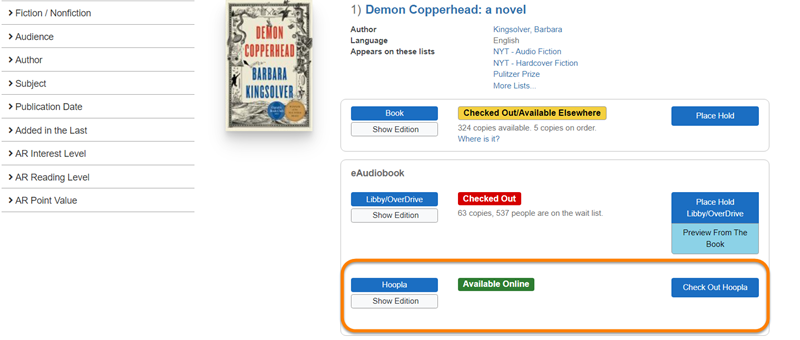
Hoopla is an online collection of streaming audiobooks, music, movies, plus ebooks and comics. Not all libraries in the Minuteman Network subscribe to Hoopla. Check your library's website or ask a librarian for details.
Hoopla titles can be found in the catalog of subscribing libraries and can be accessed by clicking on the "Instantly available on hoopla" link. (You will need to create a Hoopla log-in with your library card number or username.)
Items can be renewed by a valid card-holder if the item has no holds and the renewal limit has not been reached.
Items will automatically renew two days before the due date if they are eligible at that time. If you have supplied your library with your email address, you will get a courtesy email of which items have automatically renewed and which are due soon.
You can also renew items yourself. We offer a variety of tools to view and renew your loans:
- Log in online with MyAccount
- Access your account with MLN Mobile app
- Renew your items via text message with Text Message Notices
For more assistance with renewals, call or email the lending library. You will need your library card number.
With your Minuteman library card you can borrow up to:
200 tangible loans (books, DVDs, equipment, etc), with a limit of 5 console video games per account
10 digital loans (ebooks, audiobooks)
You can request up to:
50 library holds
10 digital holds
If you reach ANY of those limits, your account may be blocked from further activity until you release some holds and/or loans. Contact a librarian for assistance if your account is blocked.
To keep account information current, Minuteman library cards are set to expire every 5 years. (6 months for online registrations)
Each Minuteman library has its own policies for renewing library cards. Contact your library for details on how to renew your account.
Checkouts eligible for renewal will renew automatically 2 days before the due date. The new due date is extended one full loan period from the last due date.
Items will not auto-renew if:
-
The item is on hold for another patron
-
Your library does allows this type of item to renew
-
The item has reached its maximum allowed renewals
-
Your library card account is blocked or expired
Eligibility is based on the status of the item and your account at the time the 2 day reminder notice is generated.
How will I know if my items auto-renewed?
You will receive an email message with the subject "Library Due Date Reminder". The message will let you know which items are due soon and which items auto-renewed, along with current due dates.
If you do not have an email address on file with your library, you will not receive the message. Check your account with our mobile app or website to stay up-to-date about your items. Text Message Notices will alert you about which items are still due in 2 days.
If you do not have access to email and our app & website, you can also call any Minuteman library to confirm due dates, or return items by the original due date.
OverDrive & Libby
The Libby App / OverDrive collection is our digital collection of ebooks, audiobooks, and magazines. For the best experience, we recommend using the Libby App / Libby website, or the classic digital collection website. You can read or listen to loans on your device, as well as an option to read ebooks on Kindle.
You can also borrow and place holds for digital titles directly from the Minuteman catalog search results.
Under your account, view your digital loans and select Access Online, or read/listen directly in the Libby App.
For detailed instructions on borrowing items in the Libby App or Overdrive website, see their in-app help or visit their help sites.
Libby App Help: help.libbyapp.com
OverDrive digital collection website: help.overdrive.com
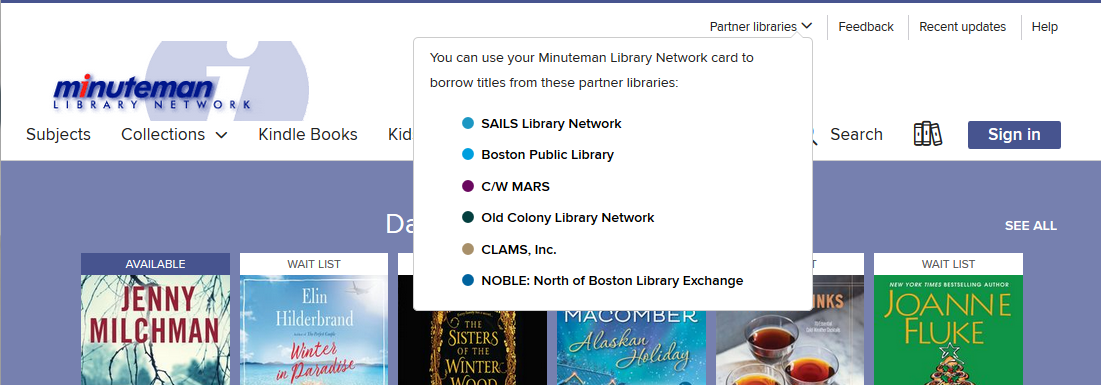
Partner Libraries are other Massachusetts library networks that have agreed to share access to their digital collection with each other.
This means you can borrow ebooks and audiobooks from any Partner Library with your Minuteman library card. Visit their digital collections or add them as libraries in the Libby App, and login as a Minuteman patron visiting their collection.
Partner Libraries:
Boston Public Library
CLAM Library Network
CW MARS
NOBLE: North of Boston Library Exchange
Old Colony Library Network (OCLN)
SAILS Library Network
Note: Some titles and formats, including magazines, are not eligible to be shared between Partner Libraries.
To get started:
1. Find or add a partner library network from either:
-Our Digital Collection website (minuteman.overdrive.com): Click on Partner Libraries
-Libby App: Select Add a Library and search for a partner Massachusetts library network
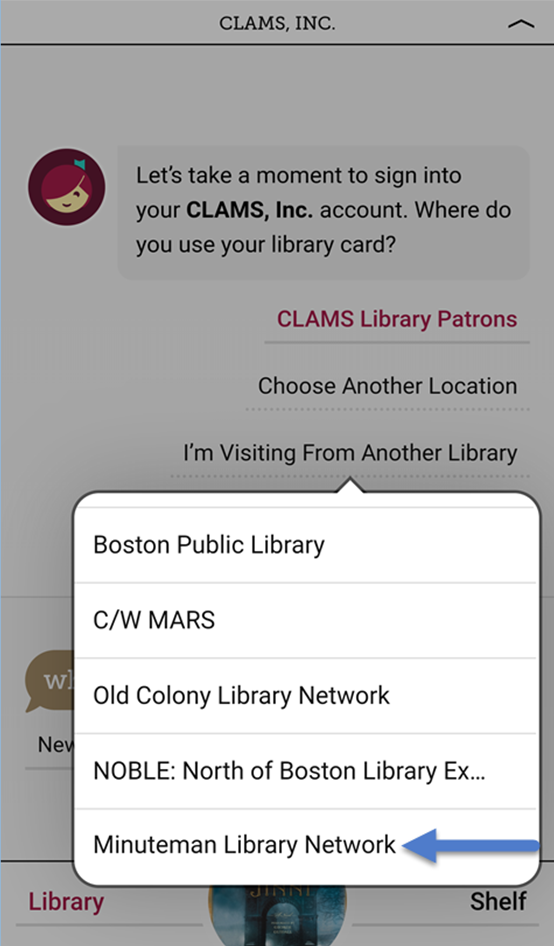
2. Sign in as a Minuteman Library Patron with your Minuteman card number (or username) & password. (In the Libby App, select the "I'm visiting from another library" option.)
3. Enjoy! Borrow and request from our neighbors’ library collections.
Digital Collection Website (OverDrive):
Click on Partner Libraries at the top menu of the page. Click on a library network name to visit their digital library.
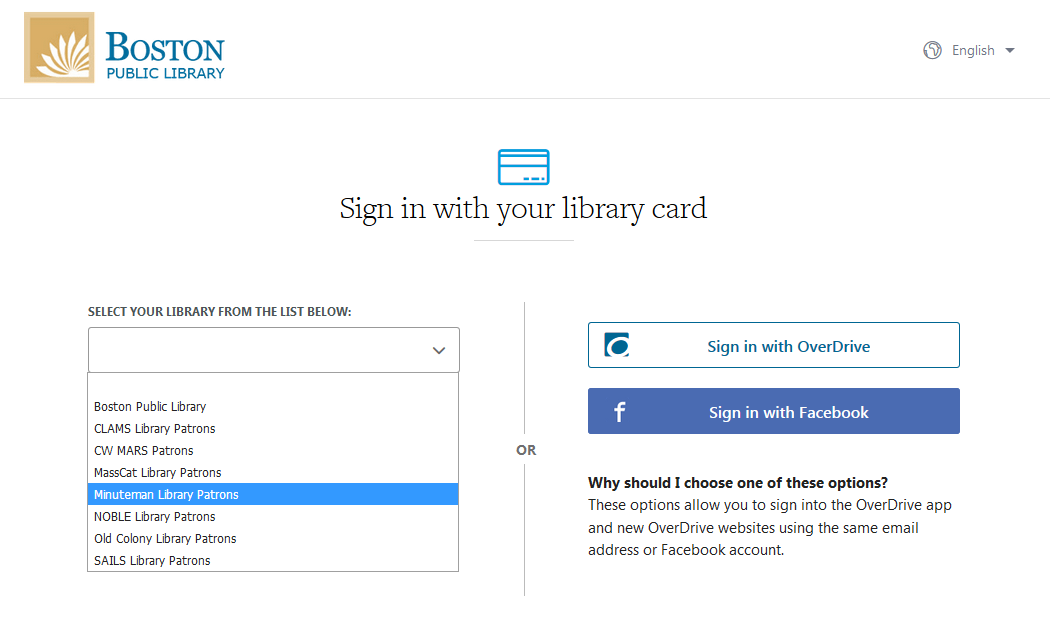
Sign in to borrow a title. Select Minuteman Library Patrons from the drop-down menu, then sign with your Minuteman library card number and password (PIN).
Libby App:
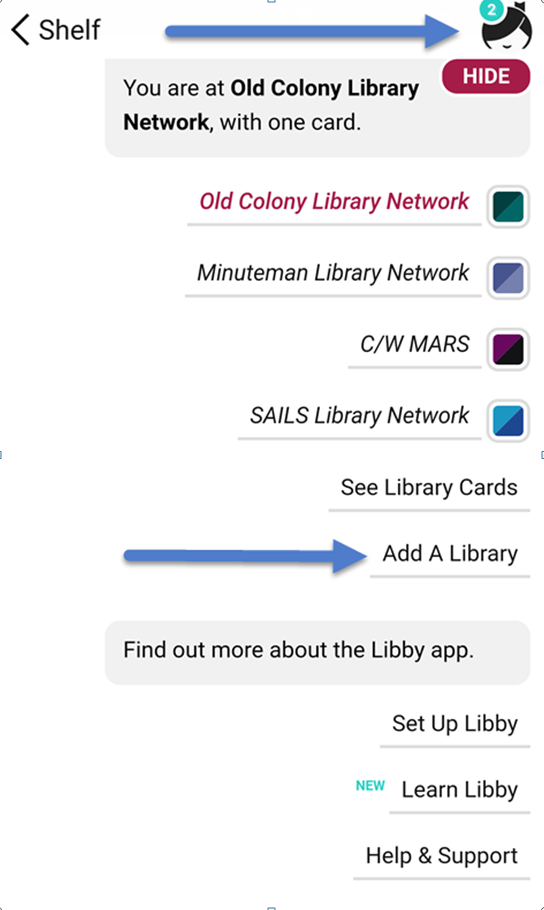
To find and switch between collections, tap  in the top right corner. Select Add A Library.
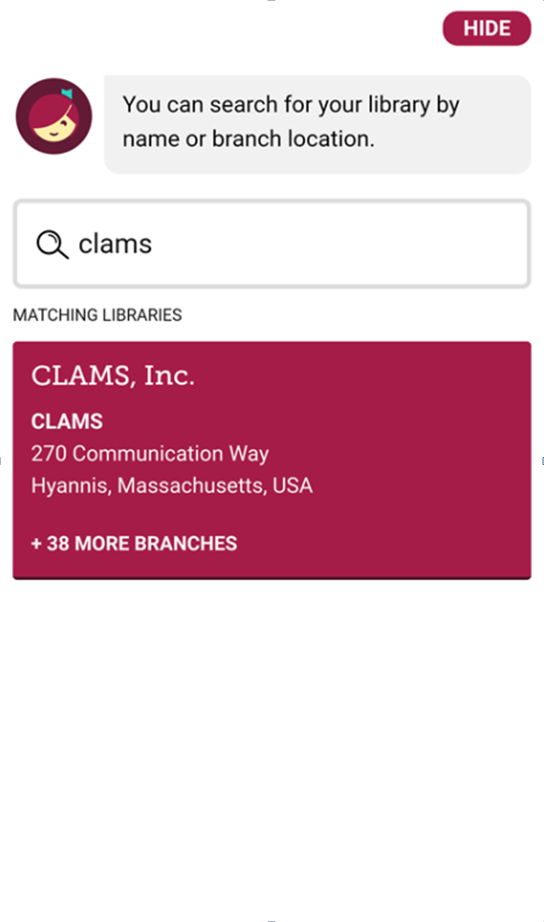
Search for a Partner Library (Boston Public Library, CLAMS, CW MARS, NOBLE, OCLN or SAILS).
Click on the library network name to visit their digital library.
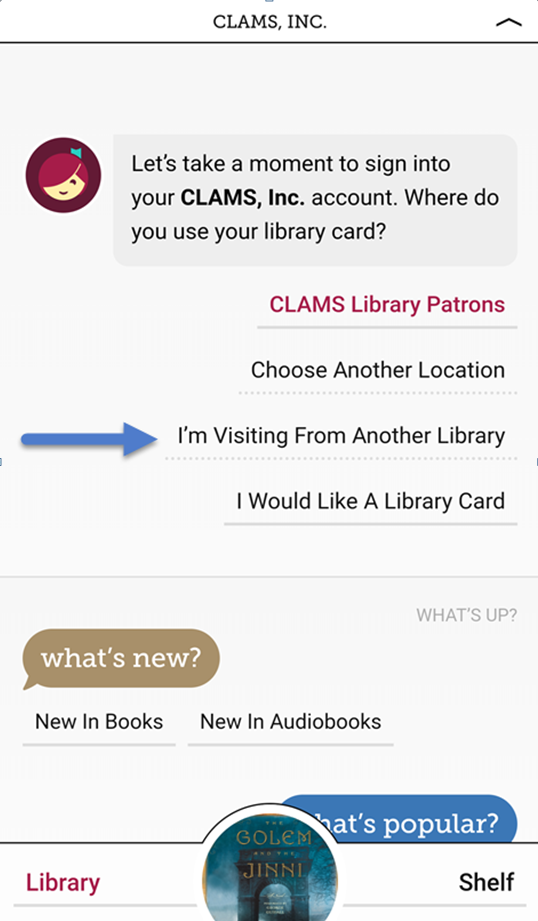
Sign in to a borrow a title. To sign in, select I'm Visiting From Another Library and choose Minuteman Library Network. Enter your Minuteman library card number and password (PIN).
Visit help.overdrive.com for instructions and training videos, as well as info about device compatibility and troubleshooting.
For help with the Libby, visit help.libby.com or tap  to open the Libby menu. At the bottom of the menu, find tips and tutorials under "Learn Libby" or help under "Help & Support."
If you need further assistance, contact a library using this form.
In the Libby app, all of your digital loans, holds, and tags are accessible on your Shelf.
The lending library network of each hold or loan is marked by a square with their brand colors.
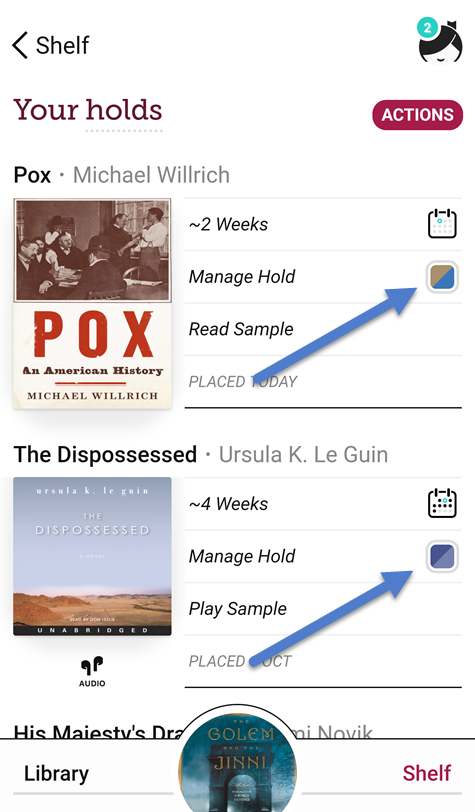
Note: You need to sign-in and save a library card in the Libby app at each library network for your loans & holds from that network to display. If you borrowed an item from a library's digital collection website (OverDrive) and it is not appearing on your shelf, confirm that you have added that library in Libby.
To borrow from other Massachusetts partner libraries with your home (Minuteman) library card, be sure to choose "Minuteman Library Patrons" from the drop-down menu whenever you sign in. (In the Libby App, first choose "I'm Visiting From Another Library".)
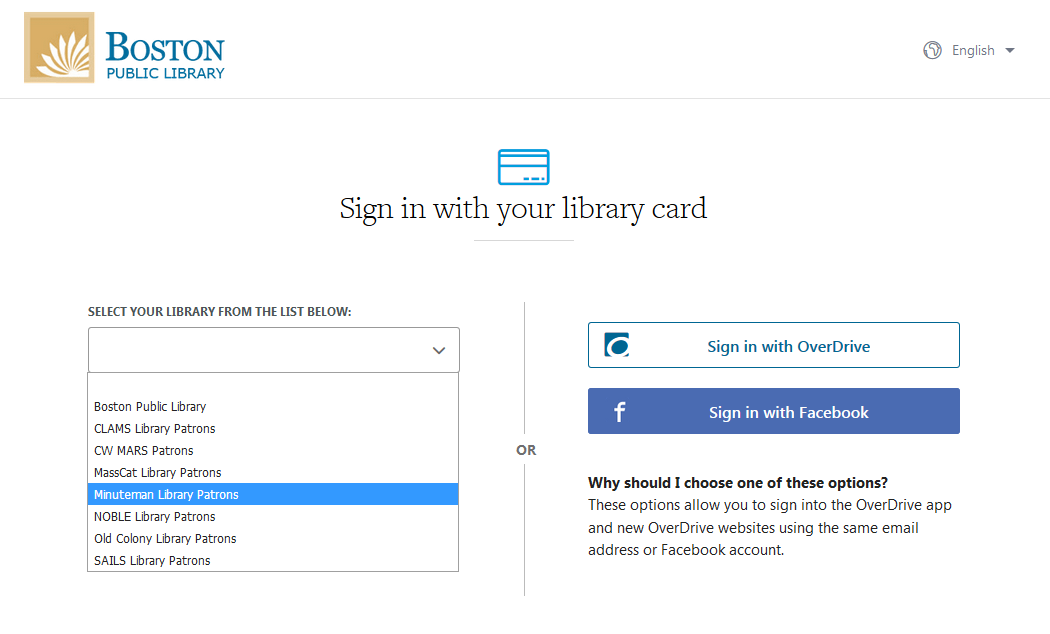
If you try to sign in as another library's patron, you will receive an error message such as "Library Server Message- Invalid Library Card" or "Library Server Message- Request Record Not Found".
If you need assistance signing in, contact a library with this form.
Do my checkout settings (loan period, auto-checkout, etc) apply to all loans in Libby and OverDrive?
Different libraries have different default loan settings, so you will need to set your preferences for each partner library network. Also, preferences need be set separately in the Libby app and OverDrive.
To change your settings for loans and holds:
- In each partner library's OverDrive collection: Sign in with your Minuteman library card and password. Go to My Account and select Settings.
- In the Libby App: See these instructions to change default loan period and holds settings.
Most ebooks from the Libby App / Minuteman collection can be sent to your Kindle. You can limit titles viewed by setting preferences and search filters in the Libby App, or using Advanced Search->Format limit in the digital collection website.
Find more instructions on reading with Kindle for:
Libby App: https://help.libbyapp.com/en-us/6017.htm
Minuteman collection website: https://help.overdrive.com/en-us/0431.html
Ebooks from Hoopla cannot be read on a Kindle.
The Libby App is not available in the Amazon App Store, but there are two ways use Libby on Kindle Fire tablet:
Option #1: Use the browser version of Libby at www.libbyapp.com with the Silk web browser.
Option #2: Download the Android version of the Libby App directly from the web using these instructions: https://www.overdrive.com/apps/libby/kindlefire
Contact the tech support staff at Minuteman library if you need assistance.
Search the Catalog
- Check the spelling in your search words. Our new catalog offers suggested spelling and "Did you mean?" search terms.
- Talk with or email a librarian for assistance with searching. Some items may be hard to find in the catalog.
- To find and request items from Massachusetts libraries outside Minuteman, search the Commonwealth Catalog. Log in with your Minuteman card number and request items not owned by Minuteman libraries.
- If you cannot find or request an item through Minuteman catalog or the Commonwealth Catalog, contact a librarian. They may be able to purchase it for the collection or borrow it through from another library through Interlibrary Loan (ILL).
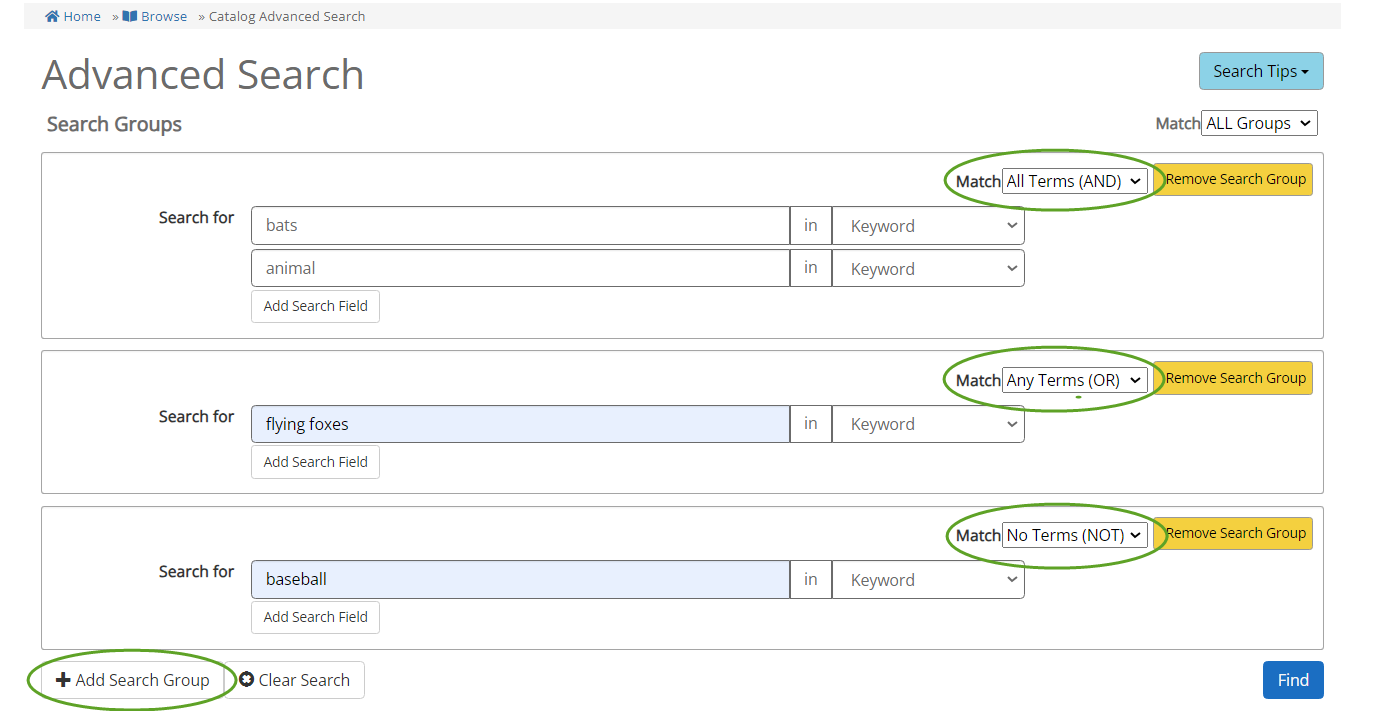
The Advanced Search form helps you build a complex or pre-limited search. Use the "Search Groups" features to build a complex search using AND, OR, & NOT conditions and limiting the word match to fields like Title, Author, Series. You can also use the filters menu to pre-filter your search with the same limiters seen to left of search results.
Using Search Groups to build a query:
The Search Groups section allows you enter multiple keywords for your search and to specify the relationships between the terms. For example, when searching for books about bats (animals) the following search looks for items about "bats" AND "animal" OR "flying foxes", and NOT "baseball" (to exclude mention of baseball bats. Use a different search group for AND/OR/NOT conditions. For more details using Search Groups and fields, see the information under "Search Tips"->"Help with Advanced Search".
All search terms entered in the main search box are treated as "AND" by default. If your search results are "No results found", try using fewer search words, or use the "OR" function. (The catalog main search box treats uppercase AND, OR, and NOT as operators. It treats lowercase "and", "or", and "not" as regular search words.
Search operators
Phrase searching: Multiple words are searched together as one phrase when enclosed in quotation marks.
Example : "vampire bat" will show only results that have "vampire bat" as phrase; vampire + bat will show results with the word 'vampire' and the word 'bat' anywhere the item's record
Wildcards : You can use wildcard symbols to substitute for a single or multiple letters or numbers in your search terms.
- Single character wildcard = ? : te?t will include search tent, test, text, etc
- Multiple character wildcard = * : libr* Results will include entries with library, libraries, librarian, librarians, etc
For more search operators and details, see this page.
Search Filters
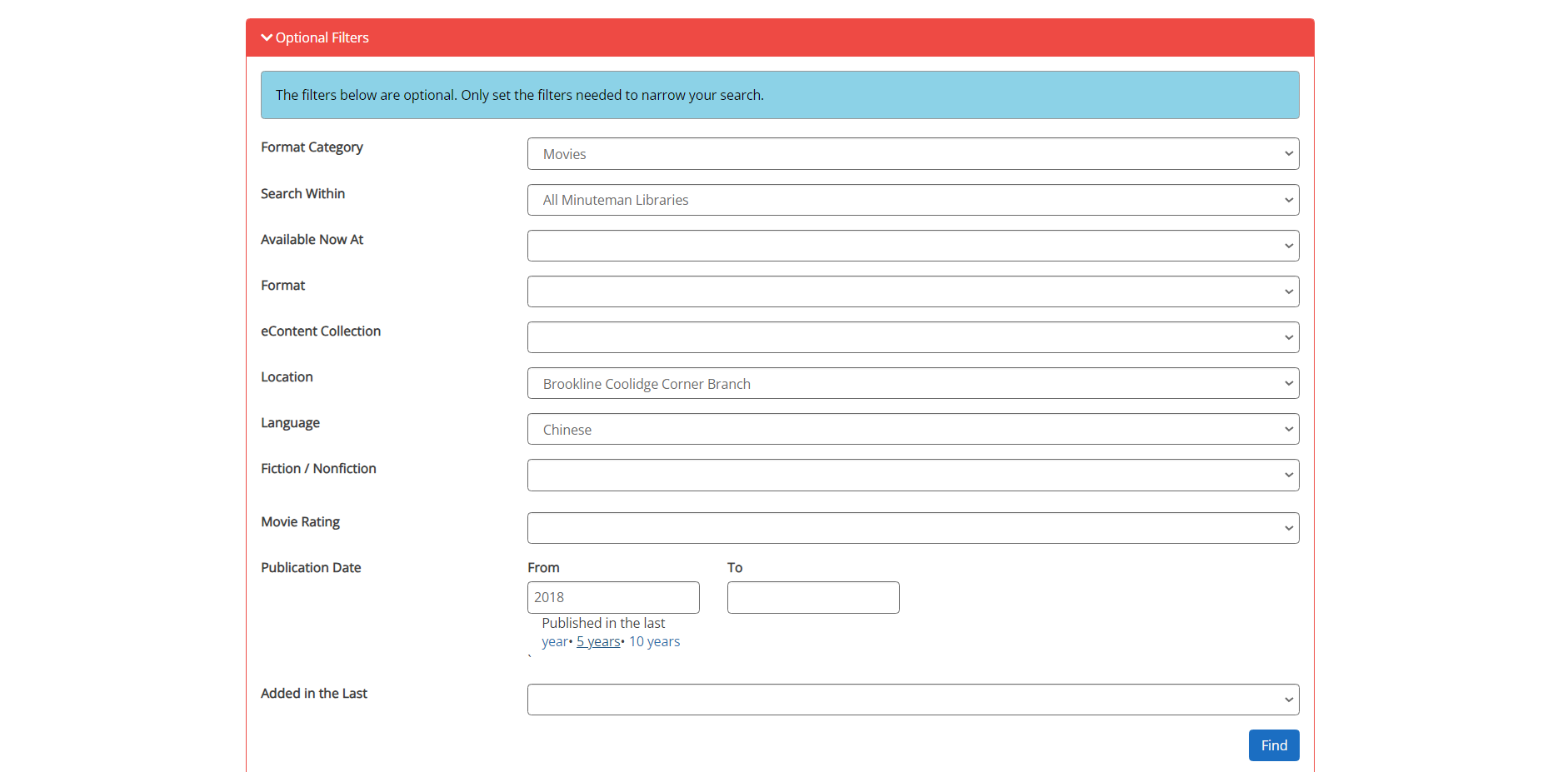
You can use the drop down tabs to pre-limit your results by many facets including format, location, publication date, reading level, and more.
For example, if you want to search for recent Chinese language films at Brookline's Coolidge Corner branch, you can select Movies as a Format Category or specify DVD or BluRay as a specific Format. Then select Brookline Coolidge Corner as the Location and Chinese as the Language, and enter the range of publication years. Leaving the "To" year blank will find all movies published in and after the "From" year.
Within those limits, you could combine the search filters with search terms in the Search Groups above, or find all items within those criteria by leaving the search fields blank.
Not sure what you're looking for? Want to browse a list of all titles in a part of your collection? You can use the search filters in our catalog to narrow down results, without having to enter anything in the search bar. (Our new catalog treats an empty search bar as a wildcard search)
For example, to browse recent Chinese language films at Brookline's Coolidge Corner branch, select DVD/VCD and BLURAY as your Format filter, Brookline Coolidge Corner as Location and Chinese as Language. Change the Sort By option to "Date Purchased Desc" to see the most recently added, or to "Total Checkouts" or "Number of Holds" to see most popular titles.
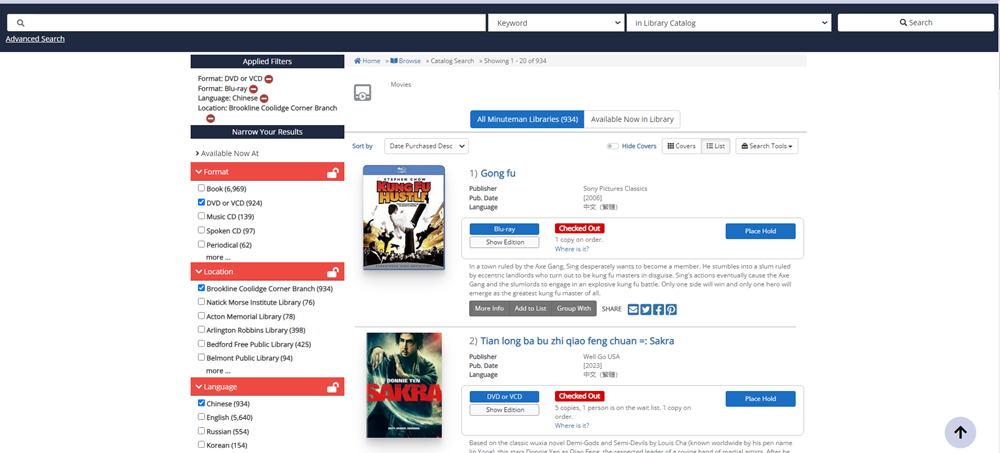
(There are over one million titles in the shared Minuteman catalog. For best results while browsing, use the filters to narrow down by Format + Location plus any additional limits like Audience, Language, Publication Date, etc)
| AV REPAIR | This item is being repaired and is not available for check out. |
| AVAILABLE | This item is available for you to borrow. |
| BINDERY | This item has been sent to the bindery and is not currently available. |
| BROWSE | This is a new item at the owning library and is currently part of their browsing collection. It is not yet available to fill a request. |
| CLMS RETD | The patron who had the item checked out thinks that it has been returned. The patron and the library staff are both searching for the missing item. |
| DAMAGED | There is damage to this item. It will not be made available to fill a request. |
| E-RESOURCE | This is material that can be obtained over the Internet. There is no physical item associated with it. |
| IN PROCESSING | This is a new item and is being prepared for checkout. Use the Request button or link to place a Hold, or visit a library where there is an Available copy. |
| IN TRANSIT | The item is currently being shipped between libraries. Use the Request button or link to place a Hold, or visit a library where there is an Available copy. |
| INCOMPLETE | One or more of the parts of this multipart item are missing. The item will not be made available to fill a request. |
| LIB USE ONLY | This item can only be used in the library. |
| MENDING | This item is being repaired. It is not currently available for borrowing. |
| MISSING | The item has been reported missing. Staff members search for items until they are found or are withdrawn from the collection. |
| ON DISPLAY 1 OR ON DISPLAY 2 | This item is on display in the library. See staff for help locating this item. |
| ON HOLDSHELF | Someone has requested this item and it is waiting for him or her to pick up. Use the Request button or link to place a Hold. |
| ON HOLDSHELF + 2 H0LDS | As above and there are 2 more requests waiting for this item. |
| ON ORDER | A few Minuteman libraries use the status of ON ORDER to indicate that they expect to receive this material. A line in the display such as: 1 copy ordered for NORWOOD/Adult on 09-23-2010. is the more common indication that the library has ordered this material. |
| OUT | This item is checked out. Use the Request button or link to place a Hold |
| PERIODICAL | This is a magazine or journal that is issued on a regular basis. If you place a request, you will be prompted to select the specific item you need. |
| STORAGE | This item is in storage, and cannot be retrieved at this time. It is not available to fill a request. |
When you search the catalog from your library's website or from the Minuteman website, you receive a list of items in our collection matching the words in your search. Multiple book or video formats of the same title all show under the same title description.
Click or tap on the title of an item for more information, including availability, item details, reviews, and recommendations for similar works.
To narrow down a long list of results, use the filters on the left hand side to narrow down your search.
Request an item or use the action buttons to save or email item information.
If your search results in no items found, the catalog may offer suggested "Did you mean?" options.
Results are ranked and sorted by an algorithm to find the best match, much like a search engine. You can change "Sort by" order to several options, including by date (Publication Year or Date Added), title, author, or popularity (Total Checkouts, Number of Holds)
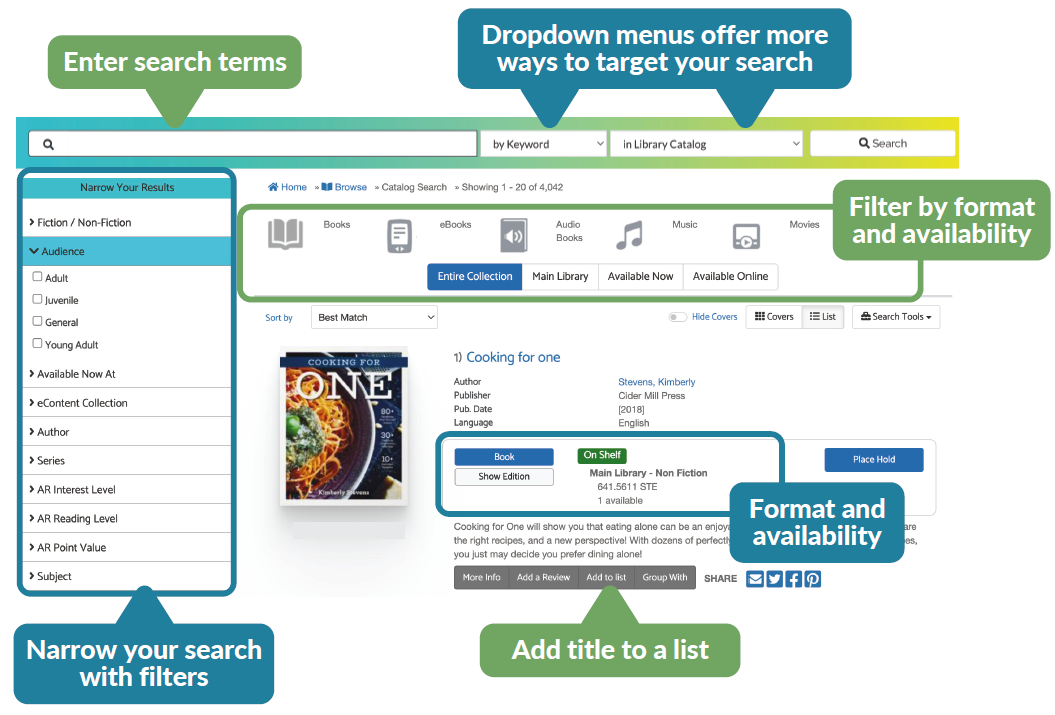
The catalog groups together all editions and copies of a title under one listing the search results. To view more details about the location and status of all copies of the title, click on the "Where Is It?" link below On Shelf/Checked Out label. A pop-up list of will show the availability, location, call number of the copies of that title.
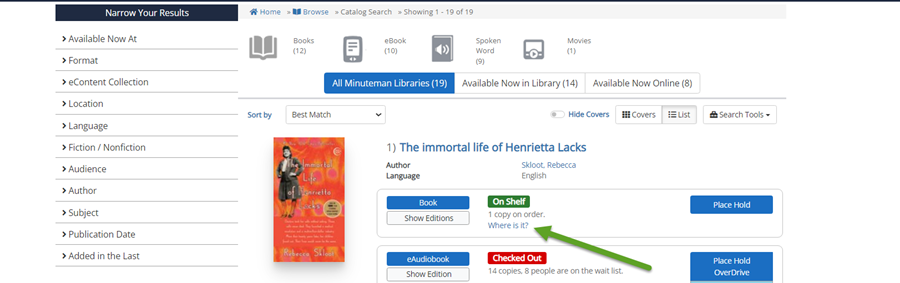
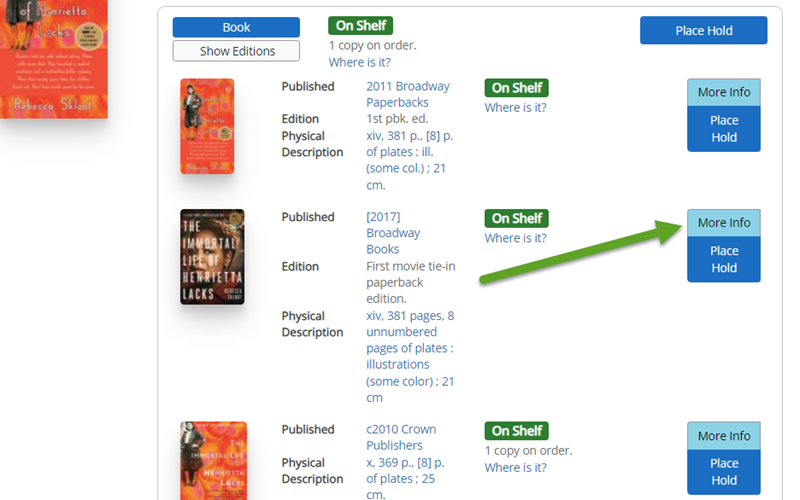
If the title has multiple editions, clicking on Show Editions will show a summary of all the editions owned in our catalog. Click on "More Info" to go to the detail page and view all the copies of the edition of your choice.
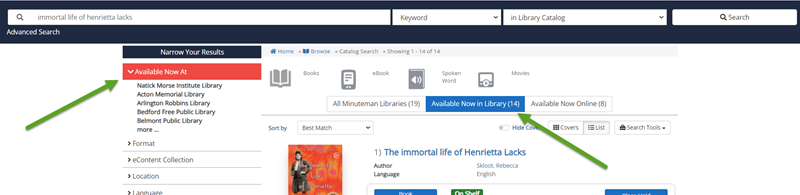
You can also easily limit results to only titles that are available at your library with the Available Now filters.
My Account
To create or reset your password:
Go to the "Forgot Password? Reset My Password" link, which can be found under the Sign In screen.
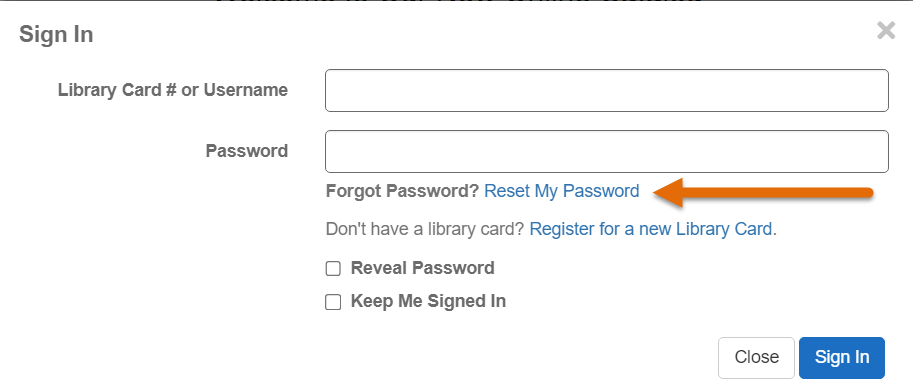
Enter your library card number or username
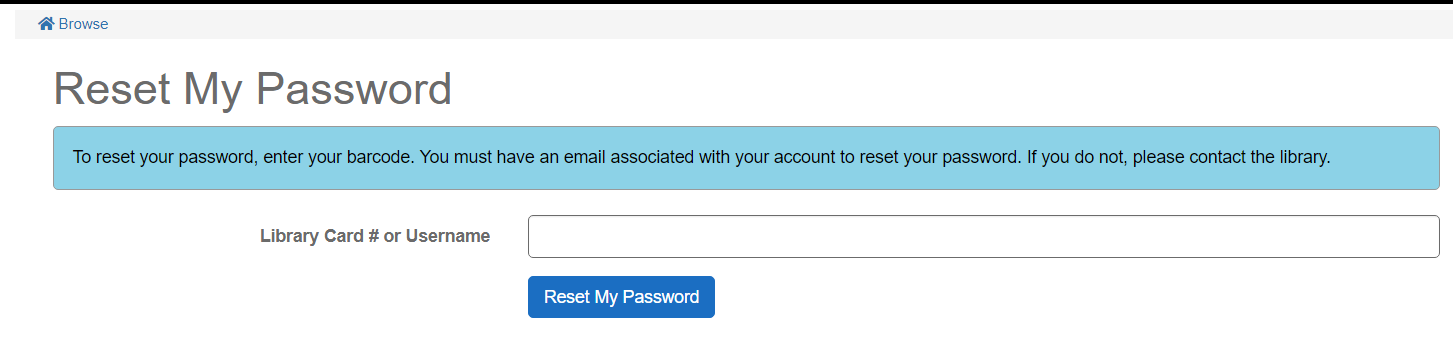
You should receive an email with instructions to reset your password, based the email address for that account
This only works if there is a valid email address in your library account. (For privacy reasons, library staff are unable to determine your old password. They can only assist you in resetting your password.)
Log in to My Account. You will need to enter your library card number and password. If you don't have a password, leave the field blank and you will be prompted to create one.
The catalog displays your patron record information.
Click on the link Checkouts. The catalog displays the items that you have currently checked out. To renew everything on your account click on the button Renew All. To renew selected items on your account, click the check box to the left of the items you want to renew. Click on the Renew Selected Items button. Check for a confirmation message and the new due date(s).
Some items may not be eligible for renewal. Eligibility is calculated when you submit a renewal request. Select "Renew All" or "Renew Selected" and hit RENEW to see if they can be renewed.
Yes, you can pay your library fines over $1.00 online with PayPaul or credit / debit card. Visa, MasterCard, Discover, American Express, Switch and Solo cards cards are accepted.
- Go to the online catalog website and Sign In to your account at the top of the screen
- Under the Fines section of your account, you can view and select charges.
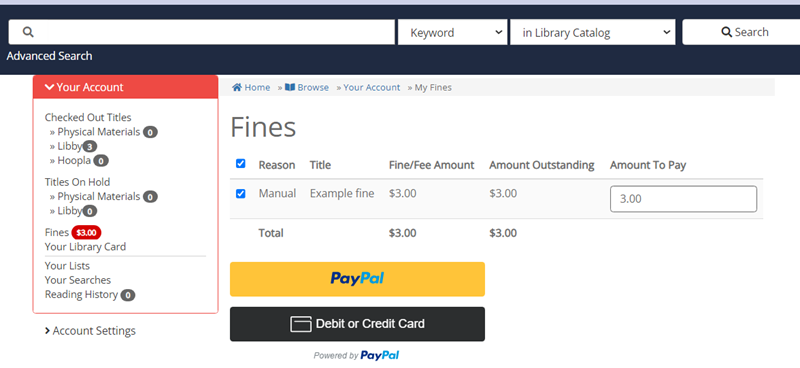
- Log in to PayPal and follow instructions from there, or enter your credit/debit card information in the form that will display below.
- Once your payment is accepted, you will see a confirmation screen that you can print as your receipt. If you have provided an email address, you will also receive an email receipt as well.
- If for any reason your payment is not accepted, you can visit your Minuteman library to pay your fines.
On your credit card statement "Minuteman" will be listed as the vendor. However, you may see the transaction listed as PayPal while payment is pending.
Online fine payments are sent by a secure (SSL) connection. Minuteman Library Network does not store any credit card information.
- There is a hold on the title for another user
- You have hit the maximum of renewals allowed - varies by library location and material (e.g. videos, new books, etc.)
- Your fines have passed the $100.00 fine maximum
- Your library account has reached its expiration date. Visit any Minuteman library to renew your card.
If you do not know your current password, you can send a reset link to the email address in your account at: https://library.minlib.net/pinreset
You can directly change your password in your account in the catalog:
- Sign in to your account with your library card number/username and current password.
- Click on your name in the upper right menu and select Reset Password.
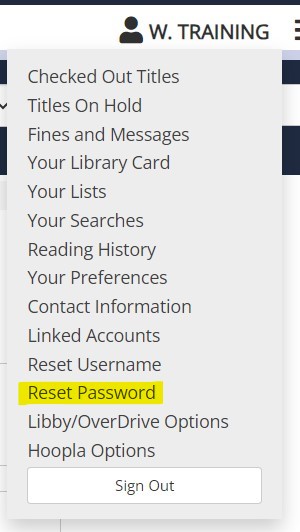
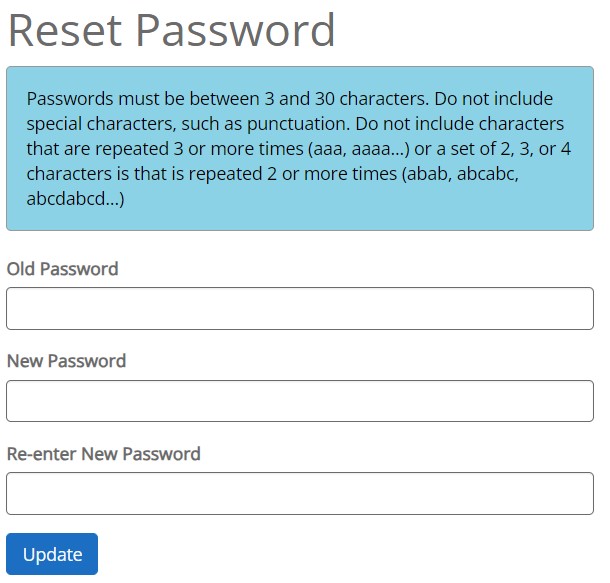
- A pop-up box will open, prompting your to enter your old password once and your new password twice.
- Fill out the information and click "Update"
Now you can log off of My Account and log back in using your new password.
In the event you have forgotten your current password you can reset it using the "Forgot your password" link at: https://catalog.minlib.net/MyAccount/InitiateResetPin
There are a few possibilities:
There is no email address in your patron record:
The password reset function only works if you have a valid email address in your patron record. If there is no email address in your record, you will receive an error message instructing you to contact staff at your library.
You have an email address on file, but it is mis-spelled or out of date:
If you are able to submit the password reset request, but do no receive a message within an hour, please contact staff at your library to confirm your email address information.
You received an email, but did not complete the reset steps within 3 hours:
If you have a valid email address, you should receive a message containing a link and instuctions to reset your password. The link is only valid for 3 hours from the time of your request. Request another password reset and click on or copy/paste the link before it expires.
When you clicked on the (long) link URL in the email message, but part of it was cut off:
A common problem is that the long URL (web address) is not kept intact if it is displayed on more than one line. Some email programs split up long URLs, making it so that you can't click directly from them to a browser.
To complete the reset process: highlight and copy the entire link URL (including "https://") and paste it into the address/search bar at the top of your browser.
A password is considered not complex enough if it contains:
- a character that is repeated 3 or more times (aaa, aaaa...).
- a set of 2, 3, or 4 characters is that is repeated 2 or more times (abab, abcabc, abcdabcd...)
Passwords must be between 4 and 30 characters long. Special characters, such as punctuation are not accepted.
To access your library account online, click "Sign In" the right-hand corner of the screen.
- Log in with your library card OR username, and your password.
- If you do not know you password, use the Reset My Password link to send a reset link to email address in your library card acccount.*
- If you do not have a library card, you can sign-up today for eCard to borrow digital materials, then visit any public Minuteman library with ID & proof of address for a full library card.
If you do have an email address on file, contact a librarian for assistance. For privacy reasons, library staff are unable to determine your old password. They can only assist you in resetting your password.
Watch this video for more help.
Check out these brief how-to videos on YouTube to learn more about our new catalog.
- How Do I Sign In To My Account
- Account Settings*
- Checked Out Titles and Holds
- Fees
- Reading & Search History
- My Lists
- Find Your Reading History
- How Do I Place A Hold
*Some account features do not apply to Minuteman.
For more assistance, please ask a librarian for help.
If you wish to keep a list of what you have borrowed from our libraries, you can choose to record Reading History. Recorded reading history will include both your physical checkouts and digital loans in one list!
- Sign in to your account
- Select Reading History
- Read the privacy statement
- Choose if you'd like to "Start Recording My History"
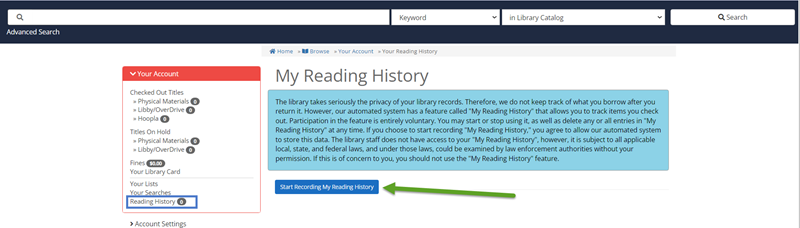
Existing Reading History for your account in our old catalog should be imported automatically once you start recording. This process may take a while, please do not leave the screen until it has completed.
You can opt in and opt out of saving reading history at any time, or delete individual titles from your history.
- Delete All will delete all your existing saved titles but continue to record reading going forward
- Stop Recording My Reading History will also delete all saved titles and stop future recording
Once titles are deleted from Reading History, they are permanently gone from your account. Library staff cannot restore deleted Reading History.
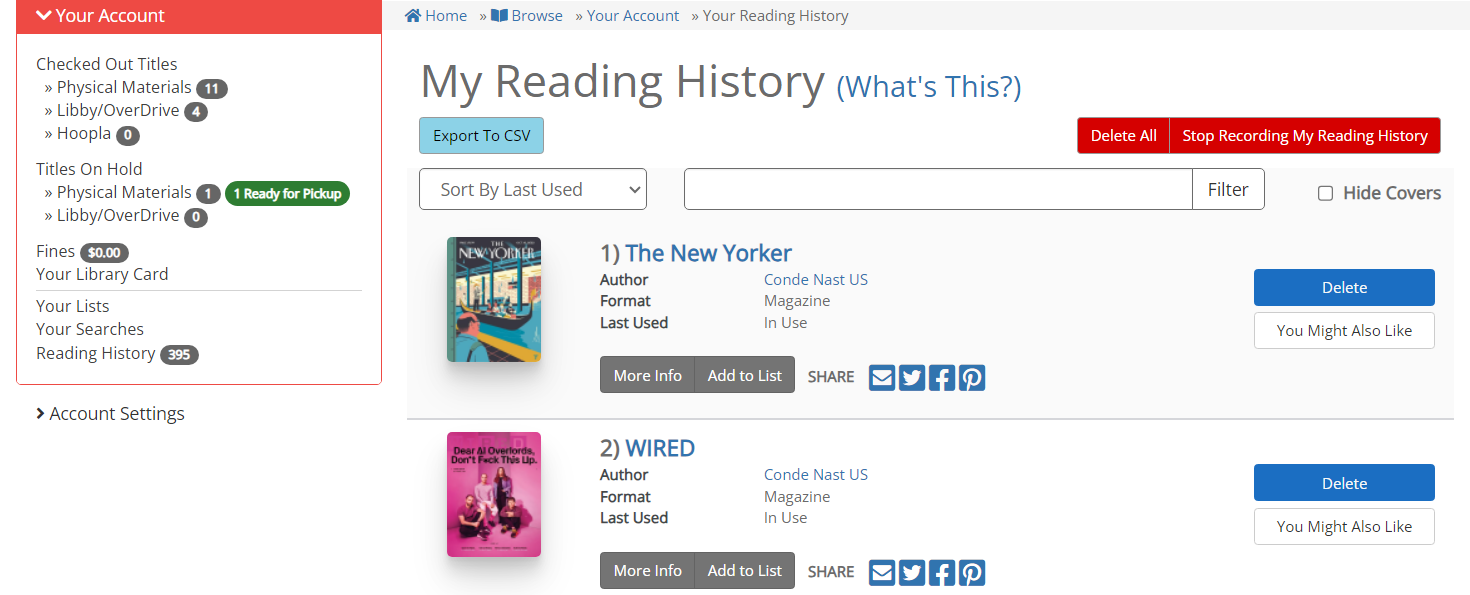
Your list can only be accessed by someone with your library card number/username and your password. The library staff cannot see this information. If others already know your password and you are concerned about your privacy, you may wish to change your password or consider not using this feature.
Whether you choose to save reading history or not, please be aware that your Minuteman password protects the record of what you have requested and checked out.
*Note 1: Backup information remains in Minuteman data for up to one month, but cannot be accessed by library staff.
*Note 2: Please be aware that the law does allow law enforcement officers to see any existing library records IF they first obtain a subpoena from a judge.
Please contact a librarian if you have questions.
Requests & Holds
Most libraries with an self-service holdshelf abbreviate your last name (family name) to the first 3-4 letters on the hold slip, but you can use an "alias" instead of your full name to display on the hold slips.
Please talk to staff at the circulation / access service desk at your library about setting a "pick-up alias". (A pick-up alias is different than your Username, and cannot be created in My Account).
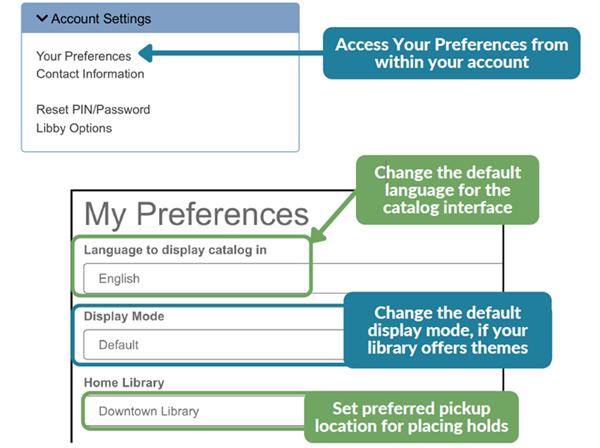
Sign in to your library account and under the account menu, select " Your Preferences". In the list of preference settings use the Home Library option to choose the library location you'd like to save as your preferred pickup location.
Changing Home Library will not change the pickup location of your existing holds, but will remember it as your preference for holds in the future.
With the Minuteman catalog:
(Recommended) Log in to My Account first, then search the catalog for items of interest.
To request an item, Click on the "Request" button next the title.
If you are already logged in, the catalog will remember you and will ask you to confirm a pick up location for each request. If not, you will be prompted to log in with your library card or username. Feel free to ignore the "Cancel if not filled by" field if not applicable.
With the MLN Mobile app:
The MLNMobile saves your account login at First Time Setup, so simply use the Search the Catalog tools to find an item of interest. Tap on the title, then press the "Place Hold" button. Confirm your pick-up location to request the the item.
With the Digital Collection and the Libby App
You can place holds for digital materials through the Minuteman catalog, or directly in the Libby App or the Digital Collection website. For details, visit their Help tutorials.
You will receive a notification that your hold is ready to pick-up.
You will receive an email notice long as you have a valid email address in your account. Email pick-up notices are run overnight, so you will receive the notice early in the morning the day after your requested item arrives. (Some libraries send out pick-up notices more frequently)
You can also sign-up to receive notices by text message. Text message pick-up notices are generated 3 times a day.
If you do not have an email address on file, you will receive a phone call from the library. (If you prefer to use text message notices only, notify staff at your library.)
No, due to the complexity of how a hold's priority is determined, the catalog does not provide that precise information.
However, there are some facts that will help you to interpret the data that you can view.
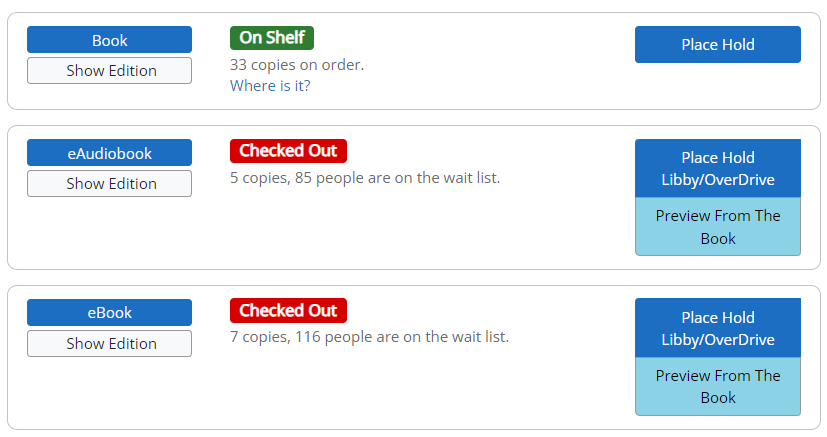
In the case of a bestseller such as this, the ratio of requests will give you a good idea of the length of the queue.
Yes, so long as the item is not already on the way to fill your request, or ready for pickup the library.
- Sign in to your account and click on your name to display the account menu or select "Your Account" from the menu icon
- Select the Titles on Hold
- Click on the "Change Pickup Loc." box and select a new pickup location
- You have already placed a request (hold) for that item. View your holds in MyAccount to check.
- Your library fines have passed the $10.00 maximum. Pay your fines online or at a library to unblock your account.
- Your account has hit the 50 holds maximum. Cancel any unwanted holds or create a List to save items for future requests.
- Your account has reached its expiration date. Contact any Minuteman library to confirm your account details and renew your card.
- No items under that title or record are eligible for you to request, based on the owning library's policy. See below for more details
- Log in to My Account and select the "Titles on Hold" tab.
- Click on "Freeze Holds" in the right column. (This box only appears if your Hold is eligible to be suspended.)
- To re-activate your hold, reverse the process by clicking the "Unfreeze Hold" box.
You will not lose your place in the request queue by freezing a request. When you unfreeze your request you will be restored to your previous place in line.
- This can happen in the case of:
- Comic book and manga issues
- Magazine issues
- Individual discs of a TV series or music anthology
- Multiple volumes in a series of travel guides
- Specific pieces of equipment
- Item is marked Damaged
- Item is marked Missing
- Item is in Storage
- Item is long overdue and presumed lost
- Item belongs to a location that is closed
There are a couple of scenarios where you may see Available items, but not be given the opportunity to request the items.
Some items are intended as browsing collection and are not eligible to fill requests. However, you are always welcome to visit the library to check out these Available items. Browsing collection names include: Speed read, Express, See It Now, etc.
This is also true of the variety of new types of materials libraries are offering, such as home & gardening tools, electronics, toys, musical instruments, telescopes, etc. These materials are in-demand and cannot be easily sent through delivery, and typically require you to visit the owning library.
If the items are currently Available, you are welcome to visit the library to borrow the materials.
Items intended as browsing collections or purchased with special funds may be limited to requests by local patrons only.
Your borrowing privileges are based on your place of residence or college affiliation. If the town where you live allows you to place holds on feature films that they own, you will be able to do so. If the town you frequent allows holds but you are not a resident there, you will not be able to place holds on those films via the online catalog. You are welcome to borrow available items in person at the owning library.
My Lists
- Log in to your My Account
- Display your desired List or your Reading History
- Click on the "Export List " button
- Under Format of List, choose Pro-Cite
- Under Send List To, choose "Local Disk"
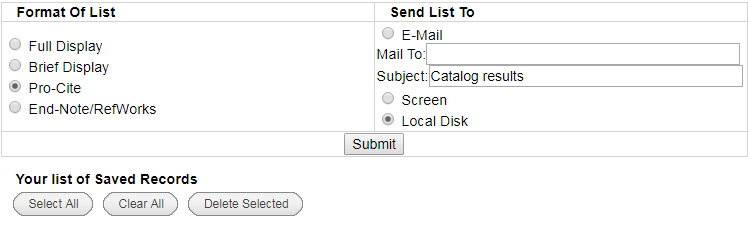
- Hit Submit to download your reading history as text (.txt) file.
- Open Excel and then use Excel to open your downloaded text file
- When prompted, indicate that this is a delimited file, using the comma as a delimiter
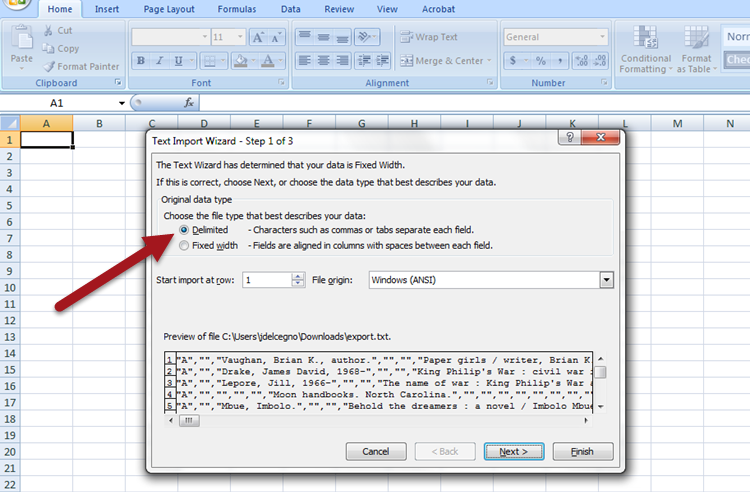
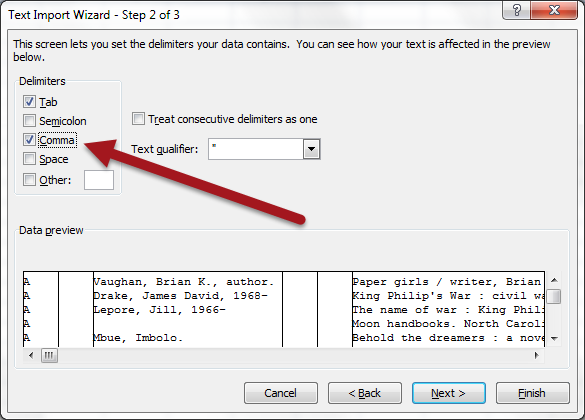
You can now format the results as desired in Excel, saving only the relevant columns:
Column C: Author
Column F: Title
Column Q: Edition ... etc
There are two ways to add titles to a list: add one item at time from your search results or add multiple items from a list of title or ISBNs.
Adding items to a list from search results:
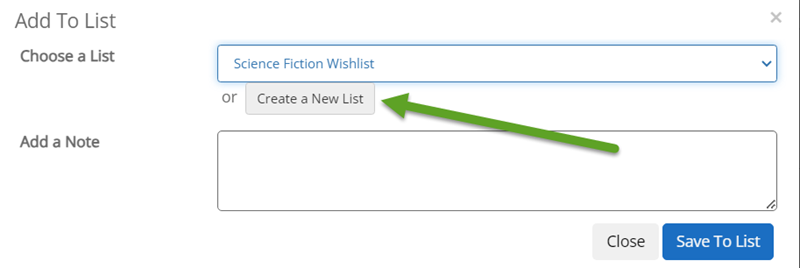
1. Search for your desired title, author, or topic. For each title of interest, click on the Add to List button (below the list of formats for the title).
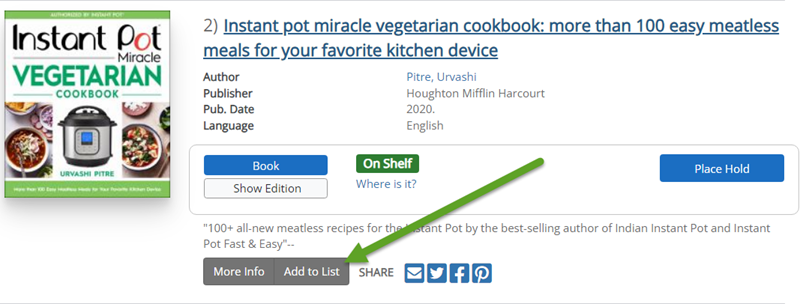
2. You have the option to add to any existing lists or create a new list. Name the list, and optionally give it a description and decide if you want to be able share the list as link. (Public lists are not displayed to other users in the catalog, it just makes the list link/URL viewable to others if you choose to share that link.
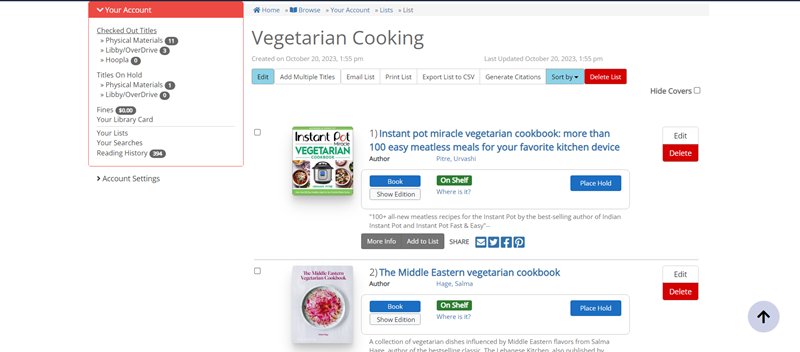
3. View your lists and saved titles under your account -> "Your Lists". You can take lots of actions from the list page, including placing a hold, sorting items, exporting the list, etc.
Adding multiple items to a list:
1. Go to the "Your Lists" section of your account. Select an existing list or create a new list that you want to add items to.
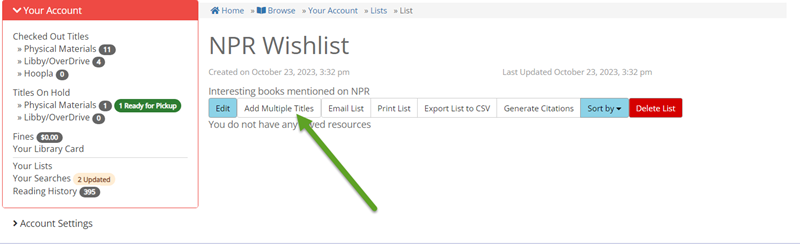
2. Click on the "Add Multiple Titles" button. This will open a pop-up where you can paste a list of titles and/or ISBNs you have saved.
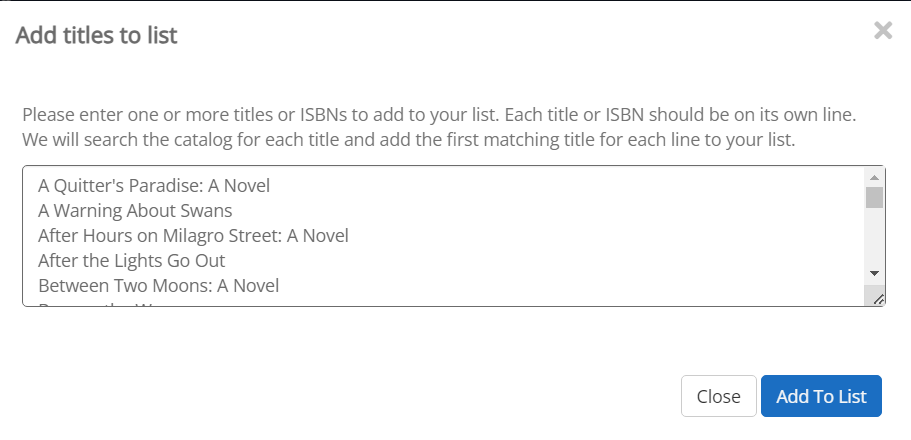
3. The system will look for matches to those titles or ISBNs in our library records. If a title match is found, it will select the first result from the list, based on the default "Best Match" relevance ranking.
4. You will get a message about how many matching items were found, and which titles or ISBNs did not find a match.

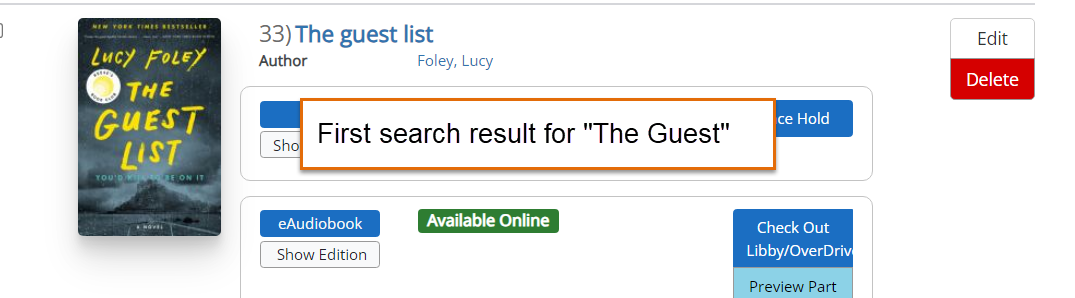
5. Review the list of added titles for accuracy. When batch adding titles to a list, you may get a match of the wrong item with a similar title. (The longer and more specific the title, the better the chance for a correct match. Short and generic titles are more likely to get a false match, as in the "The Guest" example below). For the most accurate matches, use ISBN, if possible.
Email & Text Notices
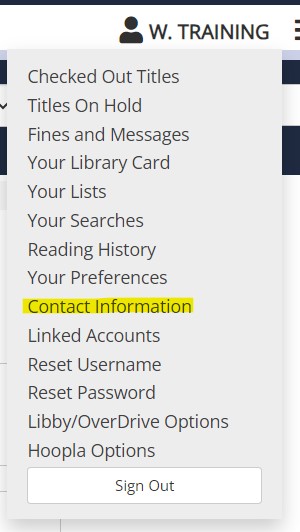
Log in to My Account and click on your name in the upper right. Click on "Contact Information", enter your new email address and select "Update Contact Information".
New Library Card Message
When you register for a new library card, you should receive a welcome message including your information about your account and Minuteman library services. Online registration messages are sent immediately and in library registration send within 24 hours. Available as: Email
Hold Pickup Notices
When a requested item arrives, you will receive a notice including the location and pick-up by date. Email messages are generated overnight, text messages three times a day. Available as: Email, Text Message, Phone Call, & U.S. Mail
Library Due Date Reminder Notices
Due date reminder notices are sent 2 days before items are due. Includes current due dates for items that are due, as well as new due dates for items that were automatically renewed. Available as: Email (Text Message reminders list items due in 2 days only)
Overdue Notices
Overdue Notices are generated after your items are at least 14 days overdue. Available as: Email, Text Message, & U.S. Mail in some libraries
Bills
Bills are sent 2 weeks after the Overdue notice (or 4 or more weeks after the item was due). All Minuteman libraries send out Bills. Available as: Email & U.S. Mail
Library Card Expiration Notice
Reminder notices are 30 days before your library card reaches its expiration. Available as: Email & Text Message
A second reminder notice is sent the day after your library card expires. Available as: Email
Our Text Message Notices service sends you library notices and other reminders as text messages. You can also renew items and check your account details by sending a text message.
To get text message notices, text the word "SIGNUP" to 833-201-1813 and enter your library card number or username when prompted. (You should receive this prompt text within an hour of registering.) You will receive several introductory messages after successfully enrolling.
Registering for text messages will not change your email notice settings. You will still receive email notices from Minuteman libraries. If you only want standard library notices as text messages, consider filtering your email by the Subject line corresponding with the message you do not want to receive.
The service, provided by Shoutbomb LLC, is free to use, though your mobile plan's rate for text messages apply.
To renew all eligible items, text the ALL command. Only eligible items that are overdue or due within 2 days will renew.
To view and select individual overdue items for renewal, text the command RL or OL. You will receive a response listing items eligible for renewal (due within 2 days or overdue) and instructions for renewing individual items.
You may only renew items that are overdue or due in two days or less via text message. Check-outs have a limit on the number of renewals allowed, so this limit is place to prevent unnecessary renewals of recently checked-out items when using the renew all commands.
To renew items before the two-day "reminder" period, log in to your account with the MLN Mobile app or online with MyAccount.
List of all renewal commands:
ALL- Renew all items
RA- Renew all reminder items (within 2 days of due date)
RL- Renew reminder items by list- follow the prompts to renew individual items from list
OA- Renew all overdue items
OL- Renew overdue items by list- follow the prompts to renew individual items from list
RW- Check which items are not eligible for renewal and why
There may be an error in how your email address was entered.
- Check online by going to: https://find.minlib.net/iii/encore/myaccount and entering your barcode and password.
- Once logged in, choose "Edit account". Confirm or update your email address.
Your email provider may be treating Minuteman library notices as suspicious or bulk mail.
- Check your email account's "spam" or "junk" folder. If library notices are being flagged as spam, follow your email provider's instructions to mark them as "not spam" and/or add "library.minlib.net" & "@minlib.net" to your email account's safe sender list.
- Check your email settings to determine whether you have filtered email in way that might exclude library notices.
Some email and Internet Service Providers (ISPs) filter out or refuse emails before they even reach your account.
- Check with your Internet Service Provider to determine whether their service refuses to deliver some email and let them know you want to receive emails from Minuteman (library.minlib.net)
If you are unable to receive library notices to your email address due to email provider filters, please consider registering for Text Message Notices.
Shortly after registering you should receive a text prompting you to enter your library card number. There may be several minutes of delay between texts. You can test your connection and setup by texting the command TEST or resend notices you may have missed to texting RESEND. If you do not get any response to those commands, try registering again with the SIGNUP command.
If after trying the above steps, you are still not receiving messages or experiencing other technical issues with text message notices, please talk to a librarian. Please let them know your library card number and mobile phone number and, if possible, screenshots of any problem text messages.
Just text SIGNUP again and enter your correct library card number. The new card number will replace the existing one.
You cannot register multiple library card numbers under one phone number. Registering a new card number always un-registers the previous one.
No, you cannot register multiple library card numbers under one phone number. Registering a new card number always un-registers the previous one. This feature is intended to protect library patrons' right to privacy.
Add the following to your allowed senders:
Minuteman library notices come from: library.minlib.net
Email from Minuteman library staff comes from: minlib.net
Citations emailed from the Mintueman catalog come from: iii@minut-encore.iii.com
Mobile App
The Minuteman combines the commonly used features of your library website into a single mobile app.
- Store your library card barcode for checkout
- Renew items
- Place, suspend, and cancel holds
- View and pay fines
- Find and request items by searching the catalog or scanning a book's barcode
- Find your library's event calendar and museum passes
- Contact your library or ask a librarian
- Access your library's digital collections and resources
Follow these instructions to get started with the Minuteman App:
- Install the App: Go to your device's app store* and search for "minuteman" to find, download & open the Minuteman Library Network App
- Choose your library
- Enter your library card number/username and password**. The app will save your account and serve as a digital library card (with barcode for checkout)
- You can now use the mobile to search the catalog, place holds, manage your account, and more!
* App Store for Apple / iOS devices (iPhones, iPads etc) ; Play Store for Android device (Google & most non-Apple mobile devices). For Kindle Fire devices, use the Silk Browser to go to the Play Store and install the Android version.
** Password / PIN is the same as your password for My Account on the catalog website. If you do not know your password, you can reset it here: https://library.minlib.net/pinreset. The password must consist of only letters and numbers, any special characters may cause login issues for the Minuteman App as well as other apps such as Libby.
At installation, you may be prompted to allow the MLN Mobile app permission to access certain features on your device. Allowing access enables the app to run smoothly and perform all functions.
Permissions needed for full functionality:
- Camera: Required to use the SCAN ISBN feature with your device camera.
- SMS: Enables the "Text Us" feature to contact your library.
- Phone: Enables "Call Us" feature contact your library.
- External Storage: Temporarily saves and displays cover images for Catalog Search results and Featured Items lists.
- Seach & Siri (Apple only): Enables search suggestions in "Search the Catalog".
You can choose to Allow or Deny access to each of those features at installation or any time by managing your app's settings.
Some Minuteman libraries send notifications (such as emergency closures and announcements) through the MLN Mobile app. Only active users (devices that used the app within the last 6 weeks) will receive the notifications.
If you do not want to receive notifications, use your device's Settings menu or App manager to turn off MLN Mobile's notification permission. Ask a librarian if you need assistance in managing your app settings.
If the answers in the Help Center did not address your question, contact your librarian.
If you are experiencing issues with My Account or Holds, you may need to provide your account information.
If the app is not working properly, please describe the problem and try to include your device details like type, (Android/Apple), model, and operating system (OS) version (Android 4, iOS 8, etc). Screenshots are appreciated.
If your device has an auto-focus camera, you can scan book and movie barcodes on the go to see if Minuteman has a copy!
Select the Scan ISBN option in the app, point your camera at the barcode. Allow the camera to adjust focus and it automatically scan and search the catalog for that ISBN or UPC number
If it does not automatically scanning or you are not offered the option of using the camera, then your device doesn't have an auto-focus camera. You can type the ISBN or UPC number instead.
If you do not find something with this tool, it does not necessarily mean our libraries do not have that title. It may be in a different edition or format, for example, an ebook instead of a physical book, or a DVD instead of a Blu-ray. So, if you do not find a match, try using a few keywords from the title and/or author.
The ISBN scan feature requires permission to access your device's camera. The app will only activate your camera while using this feature.
Apple requires all apps that allow "Unrestricted Web Access" to be rated 17+. MLN Mobile App opens a web browser to bring you to library webpages and social media, so the app fits that web access criteria. Unfortunately, this rating cannot changed.
The Play Store on Android/Google devices rates the app for Everyone.
No, you cannot save multiple library accounts in the app. The app will save and display one account at a time.
To view the account of a different library card, log out of the app by going to Log Out under My Account and log back in with that account's card number and password.
This feature is intended to protect individual library patrons' right to privacy.
Currently, the mobile app uses a different search algorithm than our web catalog, so searches may yield different results. The app and catalog retrieve and rank search results differently, just like Google or Bing may give different results for the same search.
The app search only returns 50 results, and may interpret words like "or" and "not" as special search operators, which can effect results. If you are not finding an expected result in the mobile app search, try use less or more search terms, re-try your search in our web catalog, or ask a librarian for assistance.
(Note: By mid-2020, we hope to improve the app search and match our web catalog results.)
Some member libraries allow you to check out items with your phone or tablet, using the MLN mobile app!
To get started, make sure you are logged in to your account in the mobile app, and have selected a library that allows mobile checkout. (Use the refresh symbol at the top of page to reset your account and library settings)
From the Home Screen, go the Account page in the mobile app, and select the Mobile Checkout option.
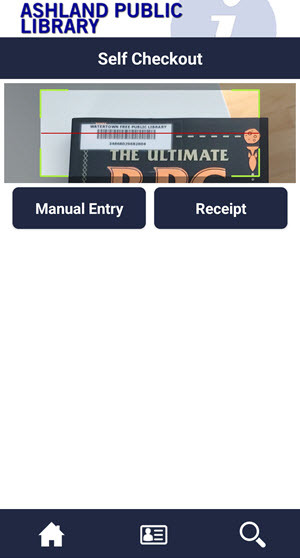
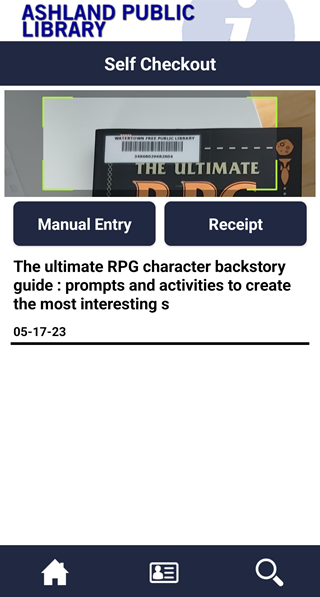
In the Mobile Checkout screen, hold your phone's camera over the item barcode to scan, or choose to manually type in the item's barcode number.
Once the app has read the barcode, it will checkout the item to you and display the due date, or, if it cannot checkout that item to you, it will respond "Unable to checkout". If unable to checkout, ask library staff for assistance.
The current version of the app is availabe for Apple and Android mobile devices. Kindle Fire tablets can use the Android version of the app.
The Apple app requires an iPhone, iPad, or iPod Touch running iOS version 12.1 or higher.
The app is not available on Windows devices. Please use our mobile catalog on Windows devices.